File Browser
Every preview has a sidebar of its folder, folders first
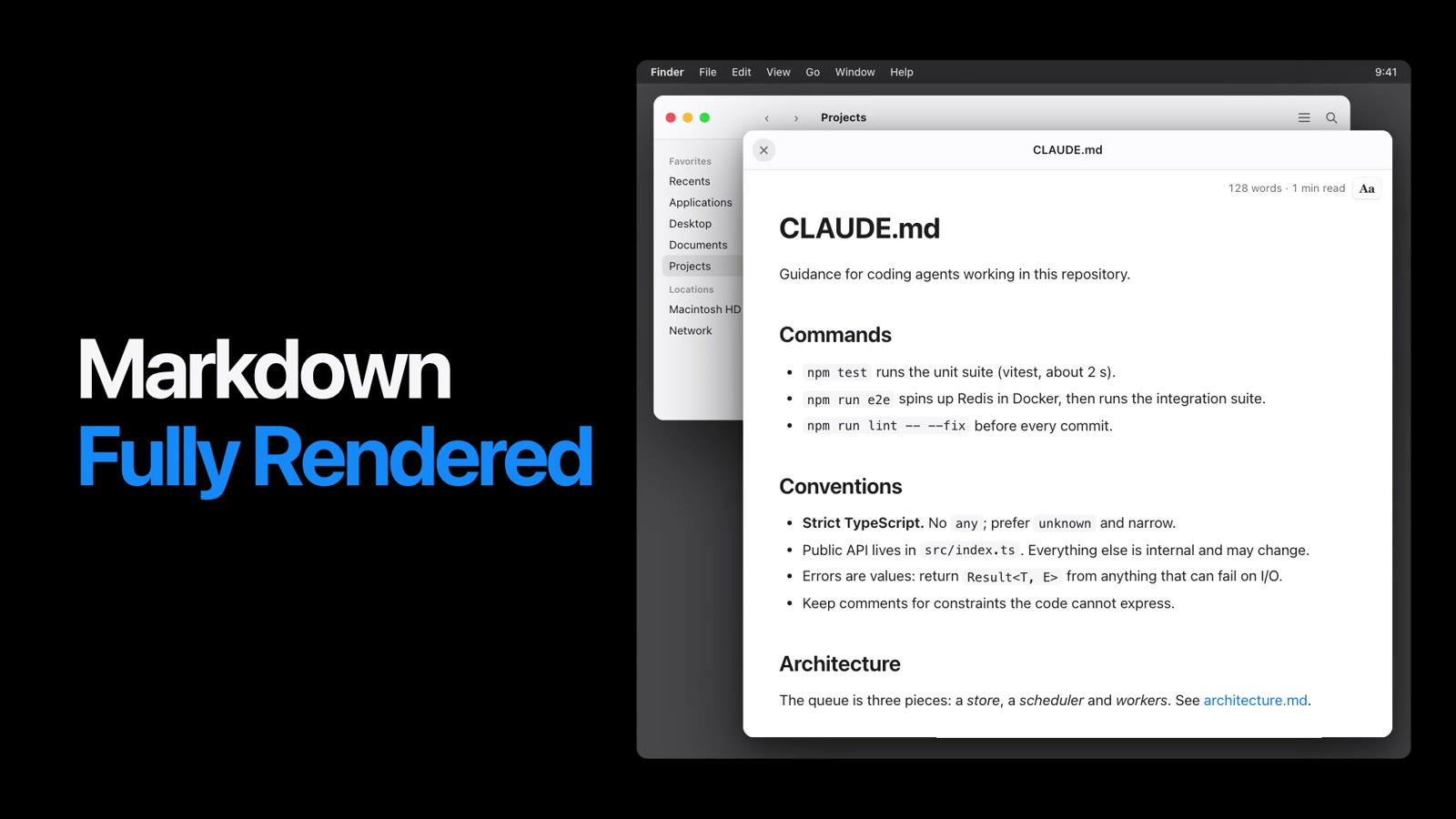
Quick Look for .md files, no app to open
curl -fsSL https://spacebar.patebryant.com/install.sh | sh
Free and open source · macOS 13+ · Apple silicon & Intel
The app’s own preview, in your browser
Click a file, press Space · ↑ ↓ to move · esc to close Tap a file to preview it Click a paragraph to edit it
Pick a theme
Every preview has a sidebar of its folder, folders first
Drag its edge or hide it; every preview remembers
Click any file in the sidebar and it shows in the panel
Turn it on, then press Space on a folder, Obsidian vaults too
Diagrams, KaTeX and 36 languages, all offline
The file changes, the panel redraws, your place stays
Apple, GitHub, Paper, Solarized, Nord, High Contrast
Orbit 2.0
Workers hold a lease, not a lock. Run orbit up.
Size, theme, width and font from Aa, or your own CSS
Workers hold a lease, not a lock, so a job runs once even when a worker stops mid-task.
Click a paragraph, type, and it saves
Workers hold a lease, not a lock
Click the text to editTap the text to edit
Press Enter to edit the Markdown. Enter, Escape or leaving the text saves it.
Tick a task and it’s written to the file
Front matter as a table, a table of contents and a word count
| title | Orbit 2.0 release notes |
|---|---|
| tags | releasequeue |
Orbit is a small job queue for Postgres. Version 2.0 moves workers from locks to leases, so a stopped worker never holds a job for good.
Leases expire on their own. Retries back off exponentially, and jobs that keep failing land in a dead-letter queue.
Run the migration, then restart workers one at a time. Old and new workers can share a queue during the rollout.
lock_timeout is now lease_ttl, in seconds.
Measured in Quick Look on our test Mac
Or edit settings.json by hand
Checks Quick Look uses spacebar and finds QLMarkdown
Themes, fonts, size, width, minimal chrome and custom.css
The file browser, hidden files and folder previews
Editing and checkboxes, on or off
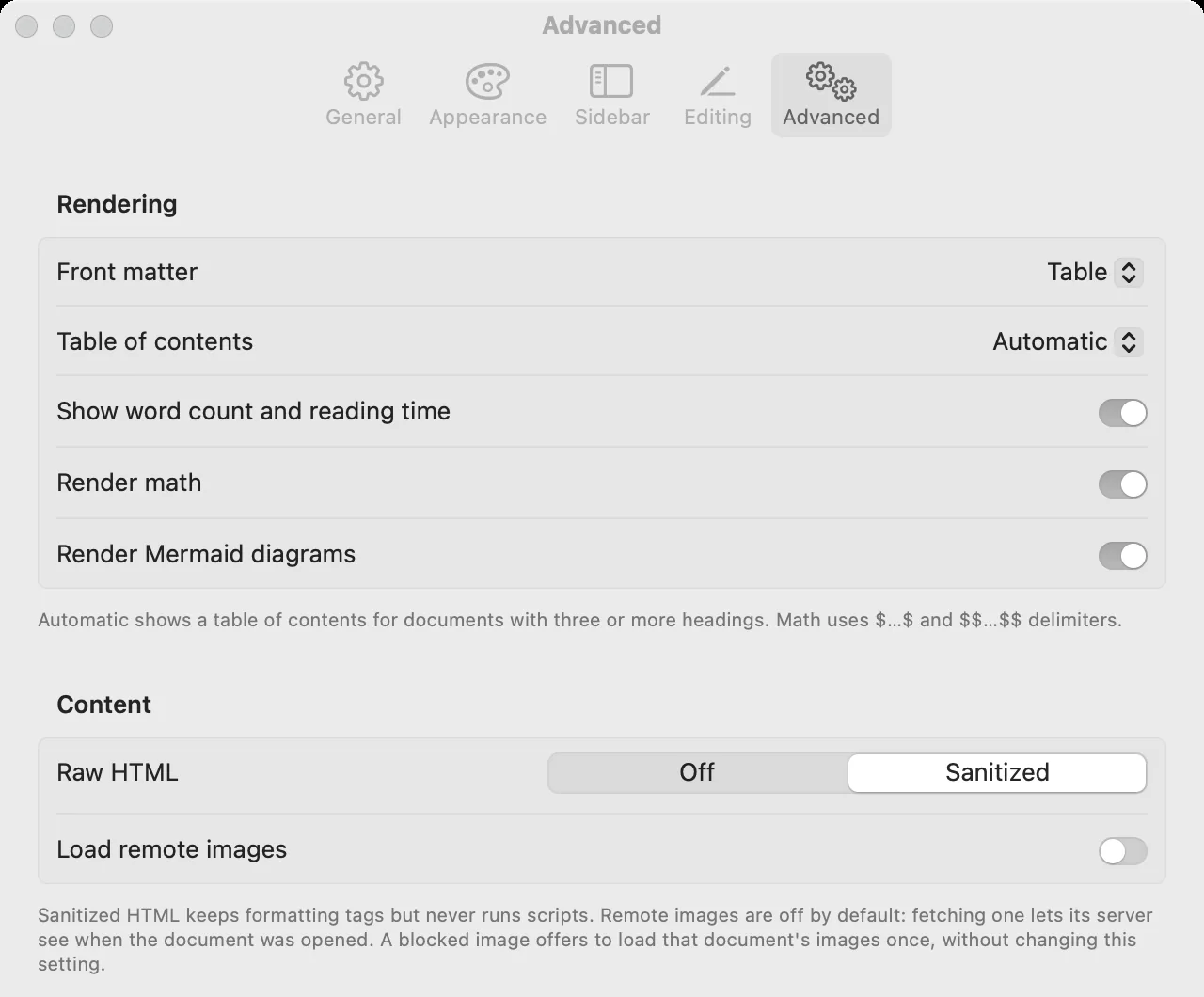
Math, Mermaid, raw HTML and remote images
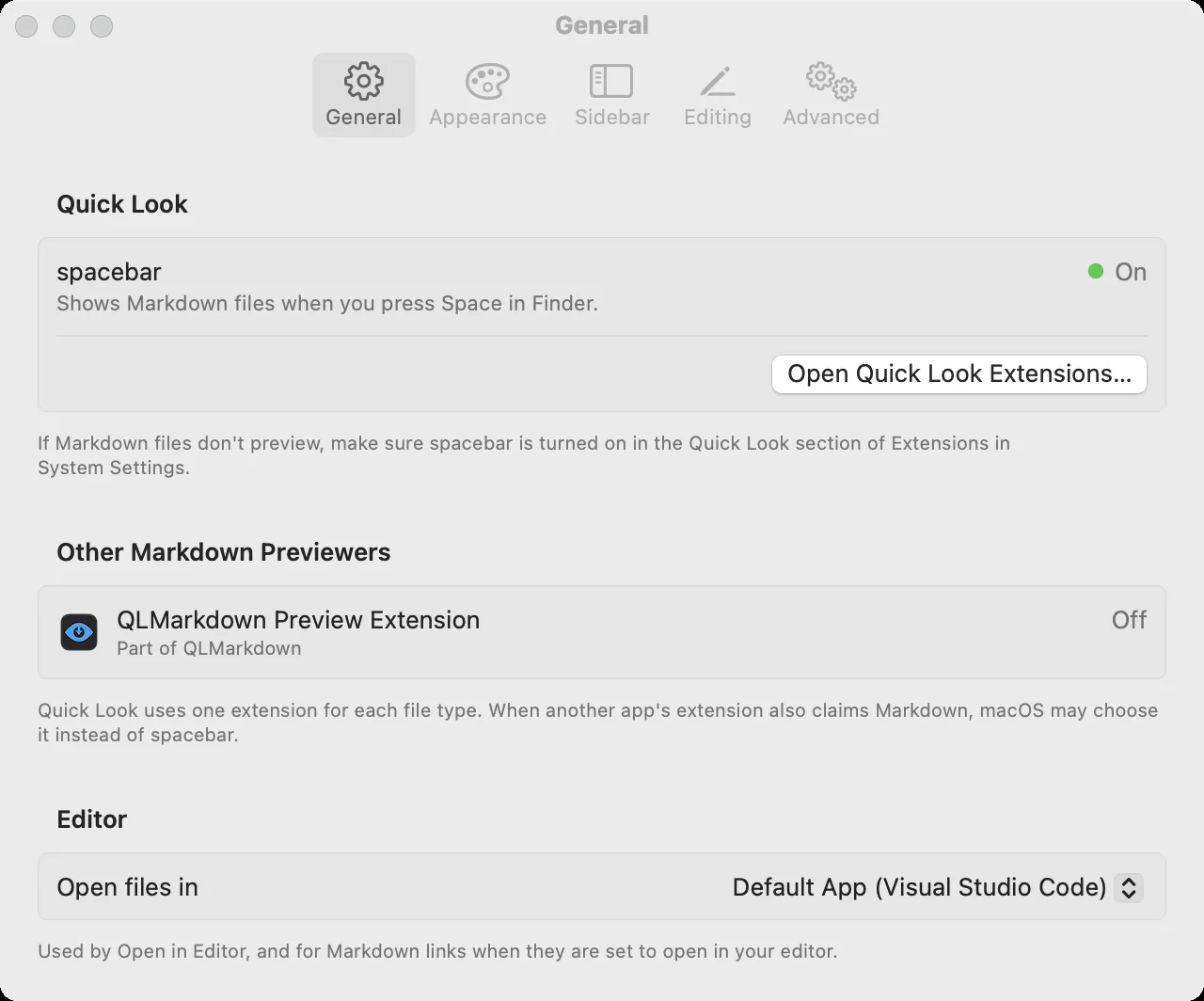

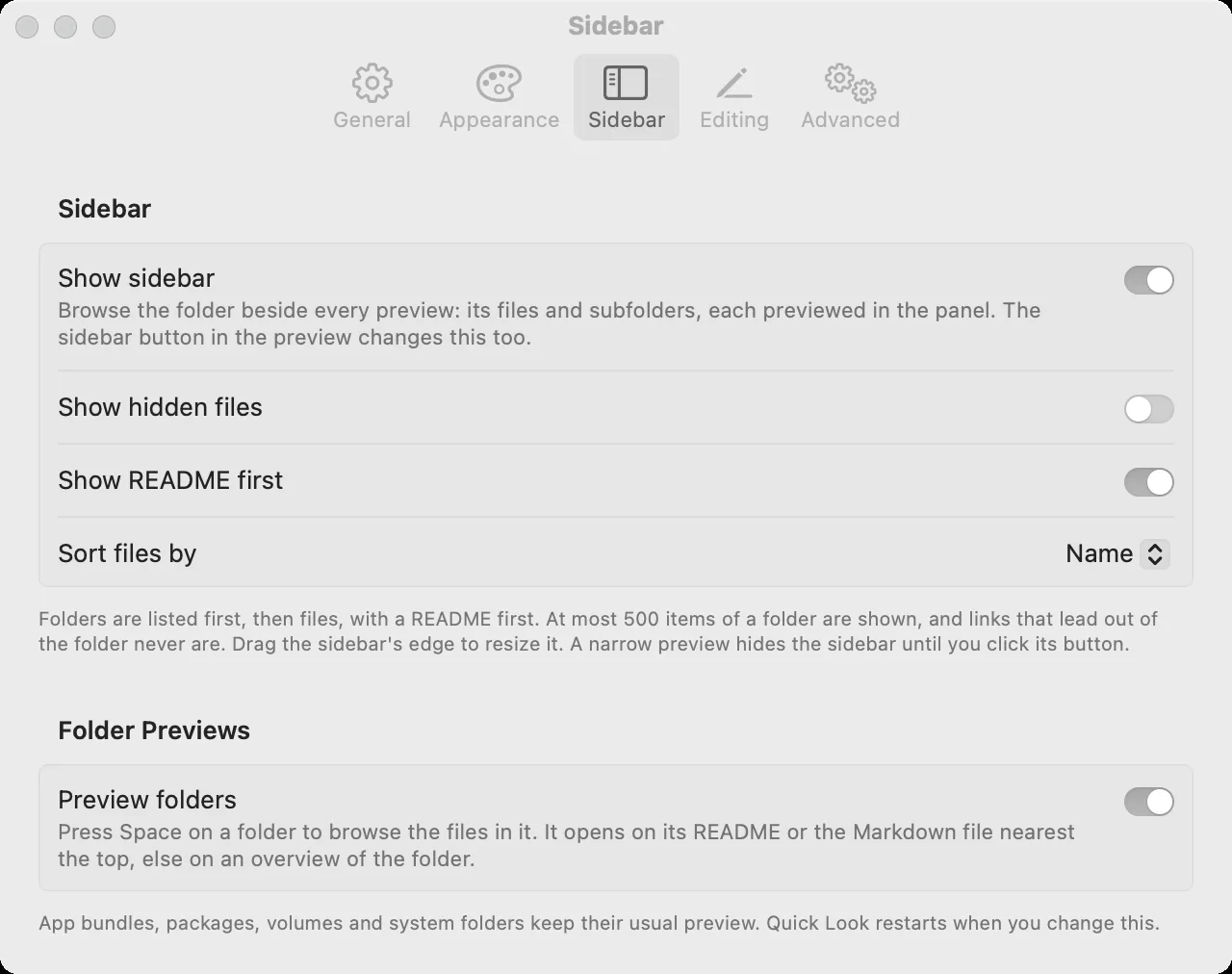
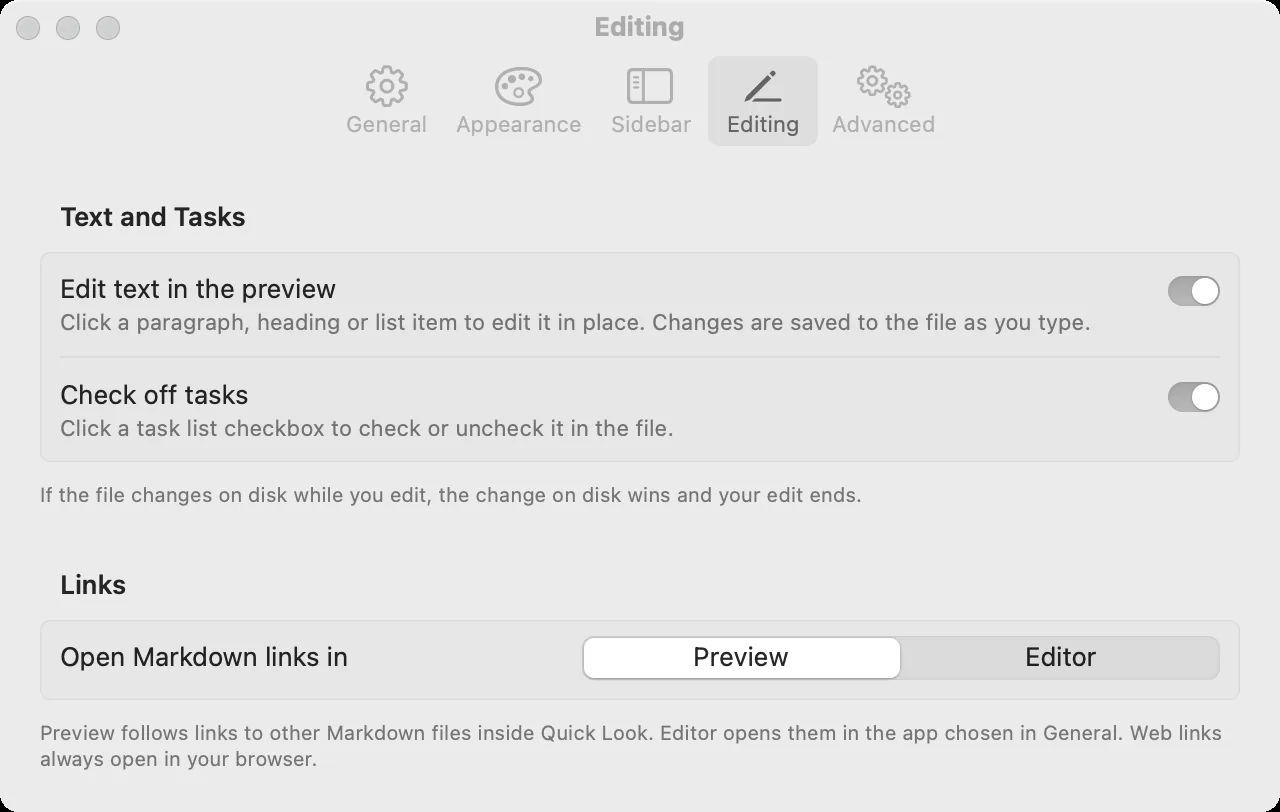
No account, no sudo. Installs to ~/Applications
The install command downloads the release, checks its SHA-256 and turns it on
On any .md file in Finder
MIT licensed, source on GitHub (opens in a new tab)
spacebar 0.1.2
macOS 13+ · Apple silicon & Intel
One email for big releases. No spam.
No analytics or account. Online only for remote images, off by default, and links you open
Documents are sanitised and can’t run scripts
No cookies. Your email if you give it. Anonymous, city-level preview stats kept 24 hours for our own use
More questions? Ask on X (opens in a new tab)
Install spacebar, select a .md file and press Space. macOS has no Markdown previewer of its own, so Quick Look shows plain text. The Quick Look guide has the details.
Yes. Turn QLMarkdown off, or macOS may keep using it; spacebar’s General settings find it and help. Here’s how the two compare.
Yes, offline. Try architecture.md and math.md in the demo, or read previewing Mermaid on a Mac.
Markdown, and from the sidebar images, PDFs, code, JSON, CSV and text. Anything else gets an info card with Open with or Reveal in Finder.
Yes. Vaults show [[wikilinks]], ![[embeds]], callouts and tags, with .obsidian hidden. Try vault-demo in the demo, or see Obsidian vaults in Finder.
Yes. Click a paragraph and type, or tick a task, and it saves to the file.
Yes. It redraws as soon as the file changes on disk and keeps your place.
Yes. Leave the preview open and it redraws each time the agent saves. See reading Claude Code’s Markdown.
Yes. Documents are sanitised and can’t run scripts, and remote images are off by default.
spacebar isn’t notarized: there’s no Apple Developer ID behind it yet, and files fetched with curl aren’t quarantined, so Gatekeeper doesn’t stop it. That means you’re trusting this project’s build, not Apple’s check, so read the install script first.
No. The app has no analytics or tracking; the privacy policy lists what this site keeps.
Nothing. It’s free and open source under MIT, on GitHub (opens in a new tab).
Run curl -fsSL https://spacebar.patebryant.com/uninstall.sh | sh. Add -s -- --purge after sh to delete your settings too.
macOS 13 Ventura or later, on Apple silicon or Intel.
curl -fsSL https://spacebar.patebryant.com/install.sh | sh